

Issues and boards
A board lists a team’s issues grouped by status. Every change syncs to every client in real time.
The board
Section titled “The board”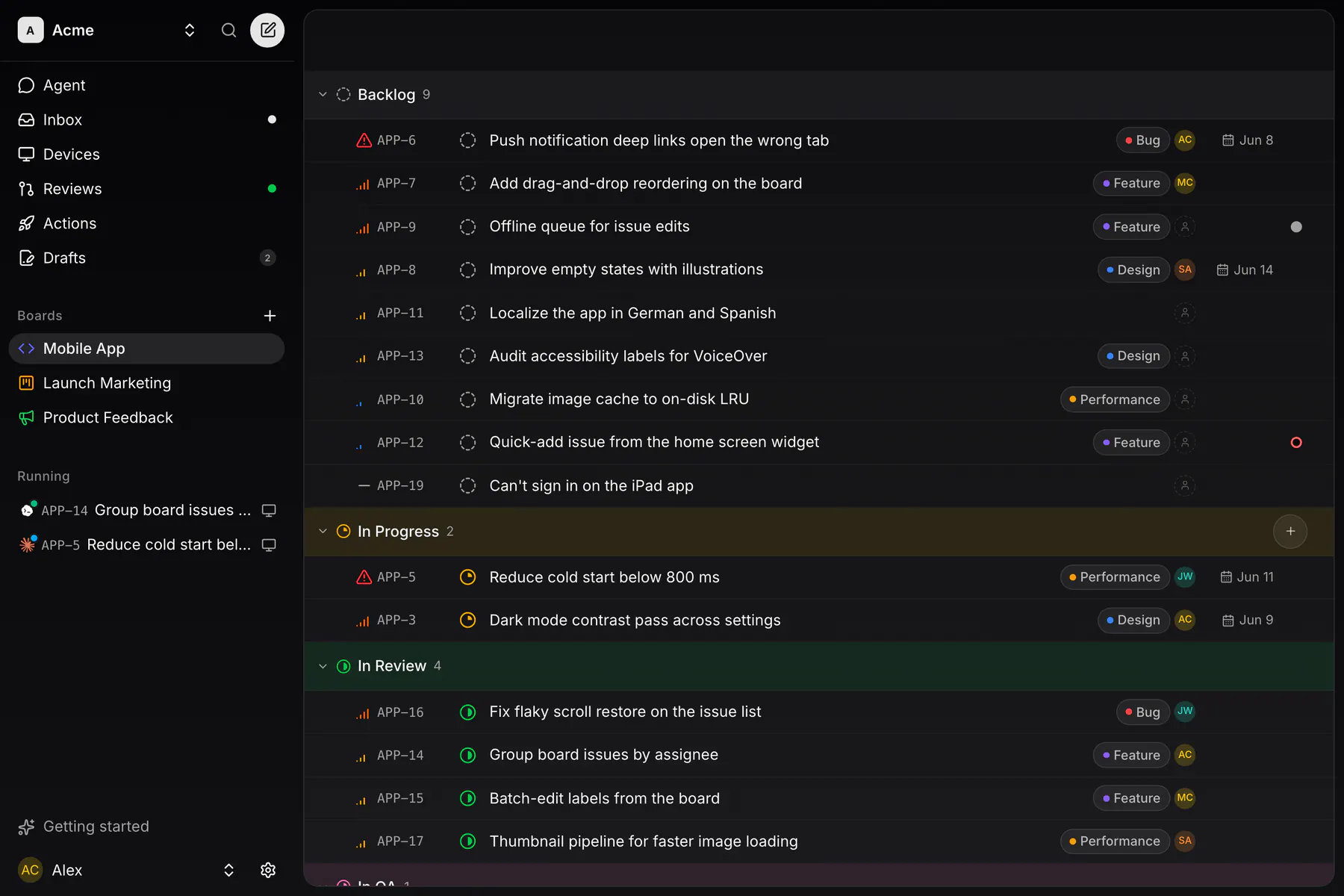
Change status, priority and assignee inline from the row. Sub-issues sit under their parent. Right-click a row (long-press on a phone) for the rest: open, mark as done, copy the ID, labels, estimate, due date, move to another board, add a relation, delete.
Cmd/Ctrl+F or the magnifier opens Search issues across the team’s boards, matching identifiers, titles and full text.
New issues
Section titled “New issues”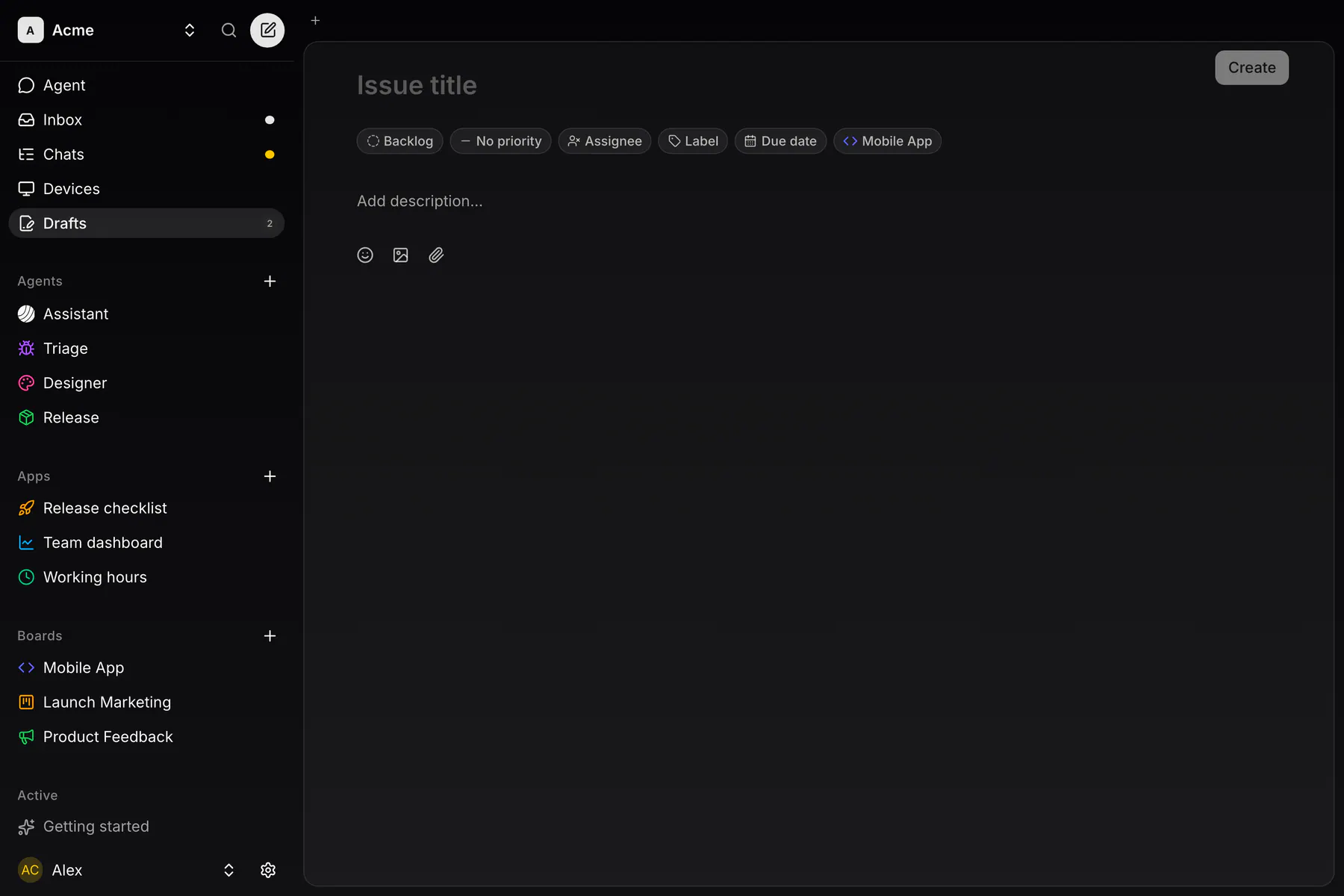
New issue (the button at the top of the sidebar, or the + on a status group) opens the issue in draft mode. Type the title, set the chips, write the description, then Create. Drafts save as you type and collect under Drafts in the sidebar.
Bulk edit
Section titled “Bulk edit”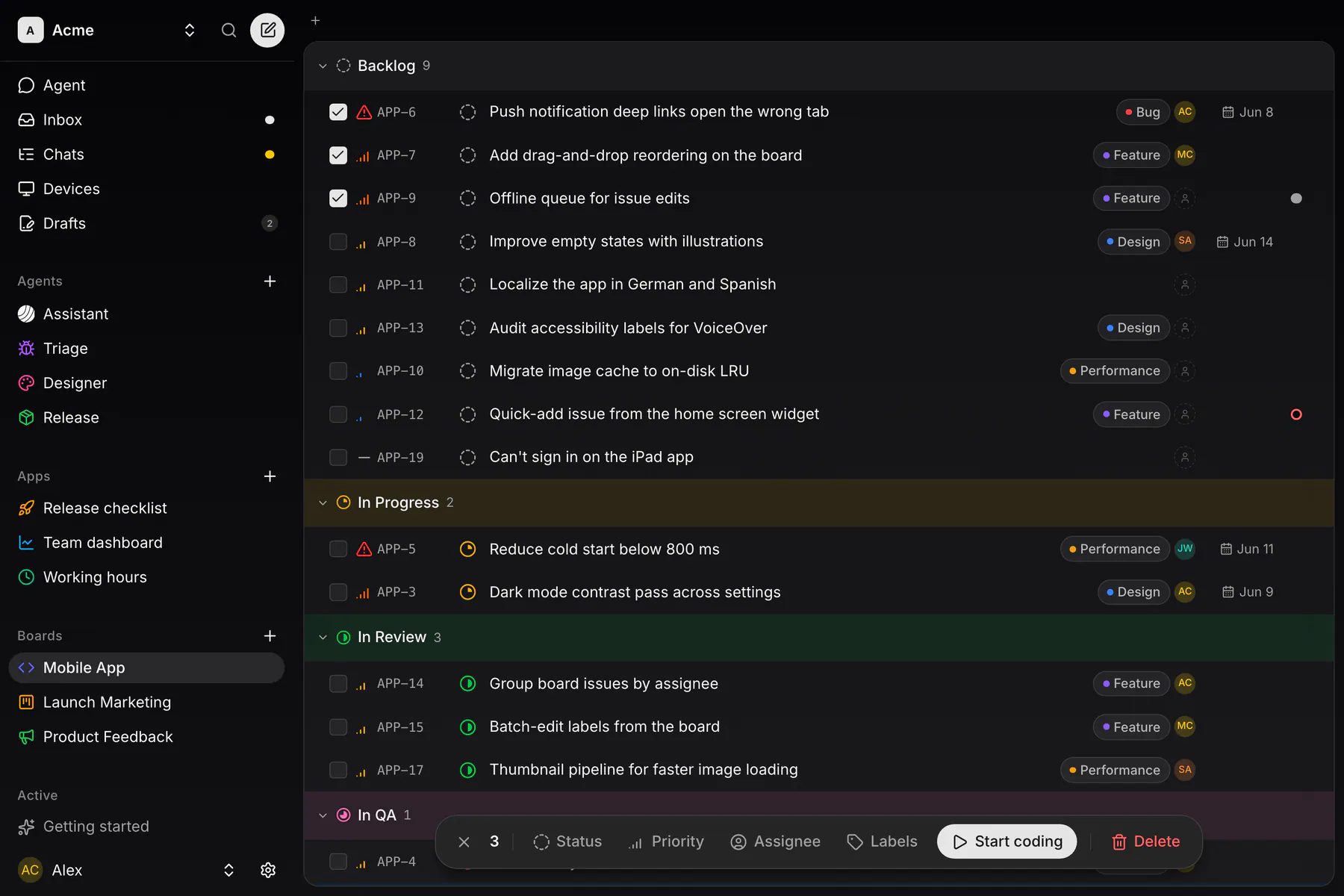
Tick the checkbox gutter to select rows. The bar sets Status, Priority, Assignee and Labels, deletes the selection, or hands it to an agent with Start coding as one chat.
Statuses, priorities and estimates
Section titled “Statuses, priorities and estimates”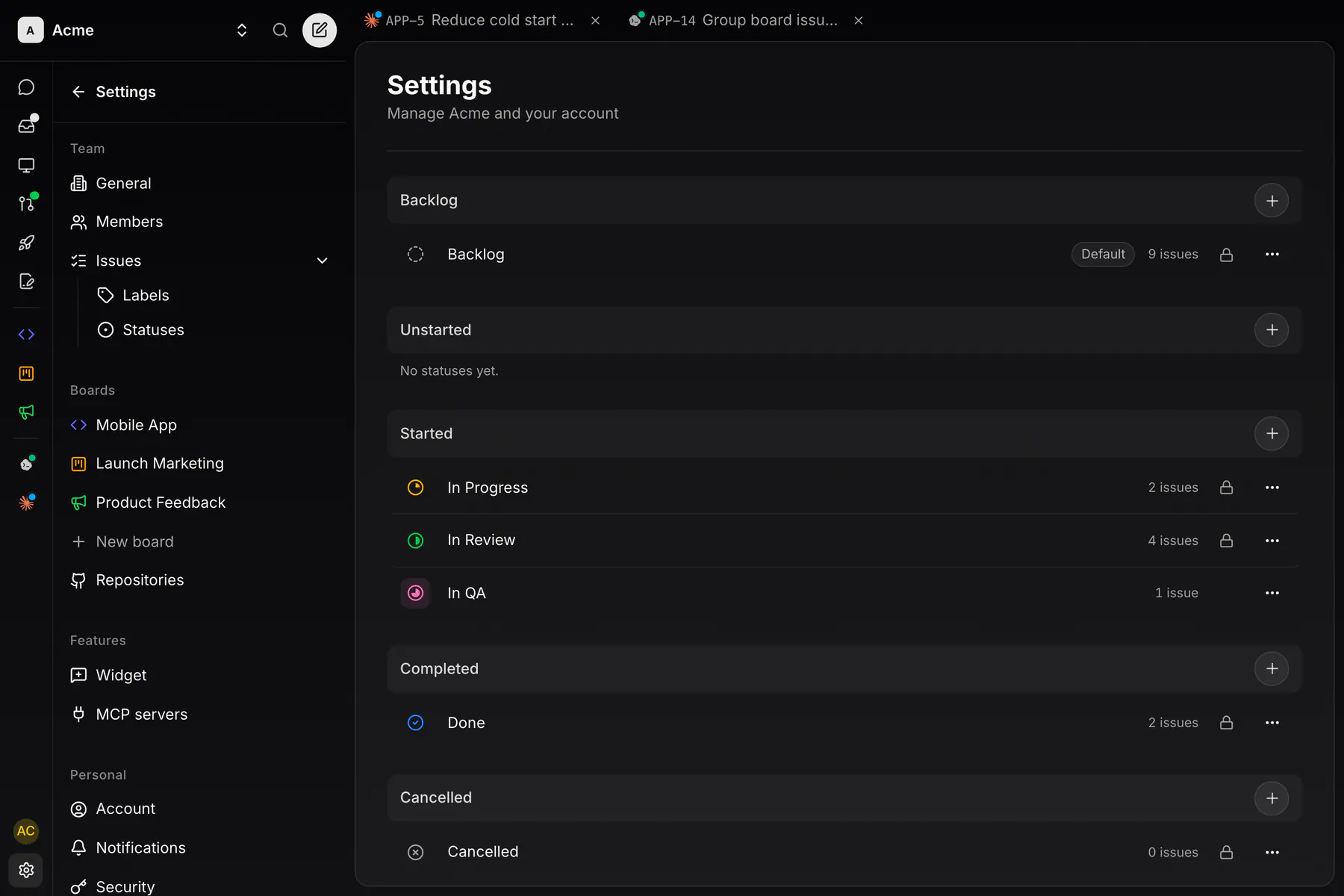
Every team starts with six locked statuses: Backlog, In Progress, In Review, Done, Cancelled and Duplicate. Add your own under Settings → Issues → Statuses: a name, a color and one of six categories (backlog, unstarted, started, completed, cancelled, duplicate). The board groups by category.
Priorities are Urgent, High, Medium, Low or none. An owner can turn on estimates under Settings → Issues with an Estimate scale: Exponential (1–16), Fibonacci (1–8), Linear (1–5) or T-shirt (XS–XL).
Issue detail
Section titled “Issue detail”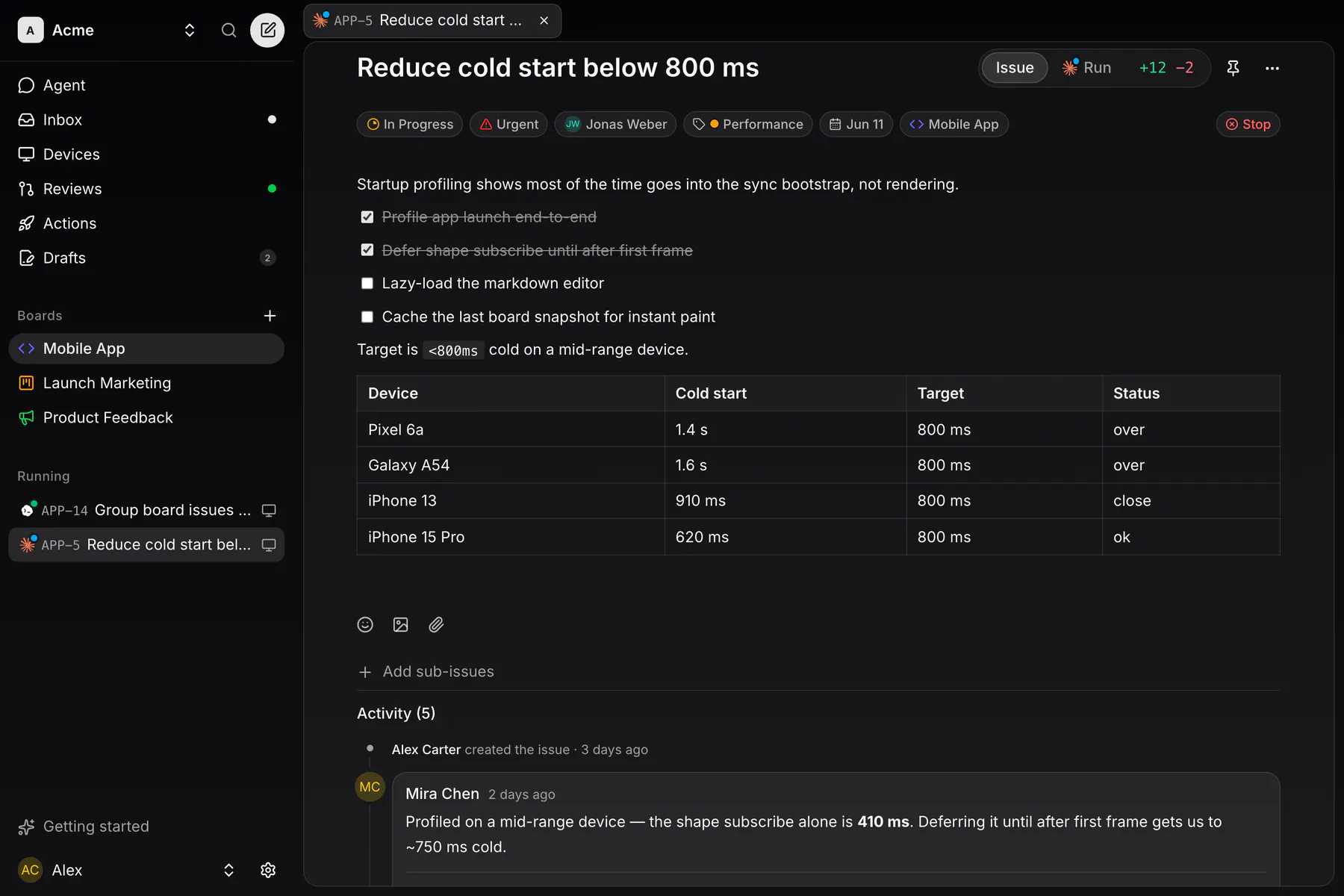
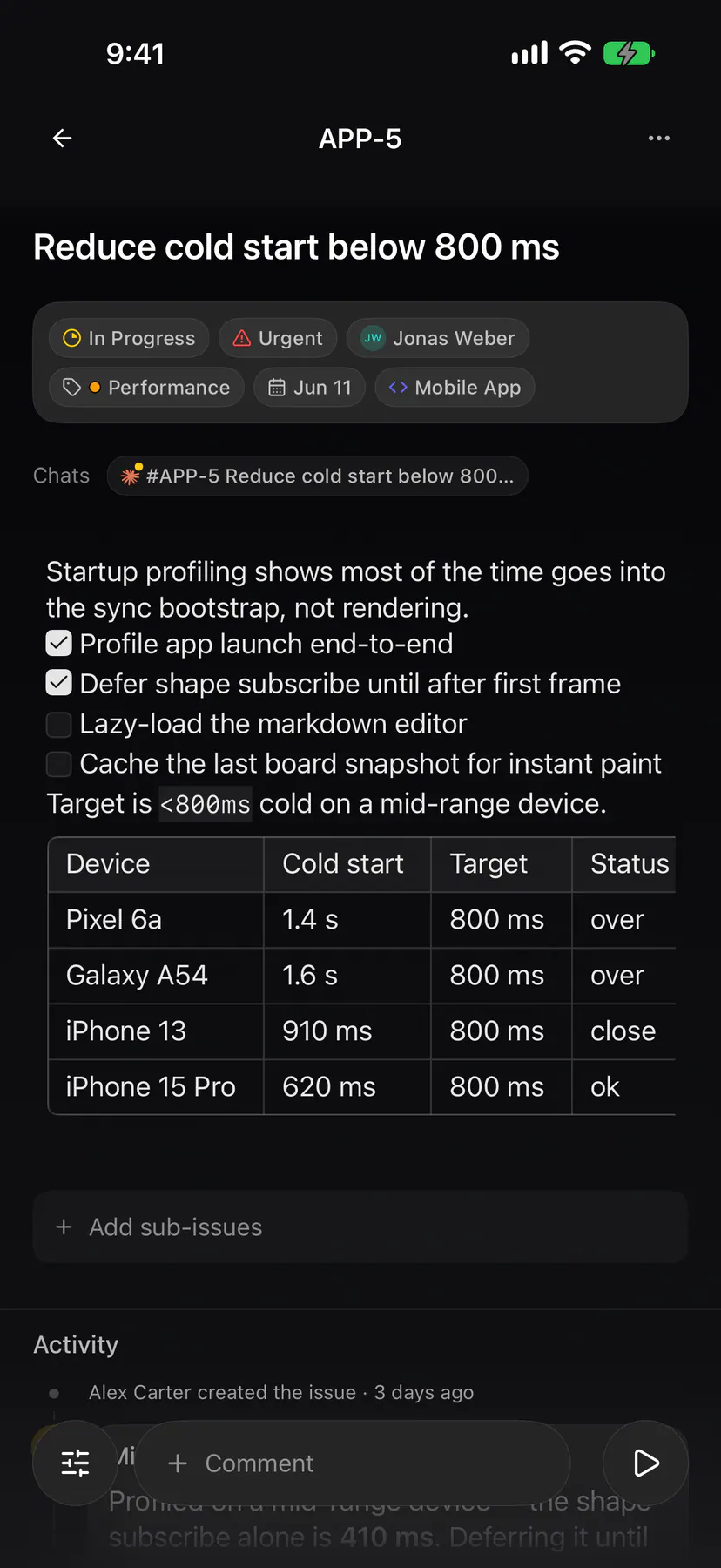
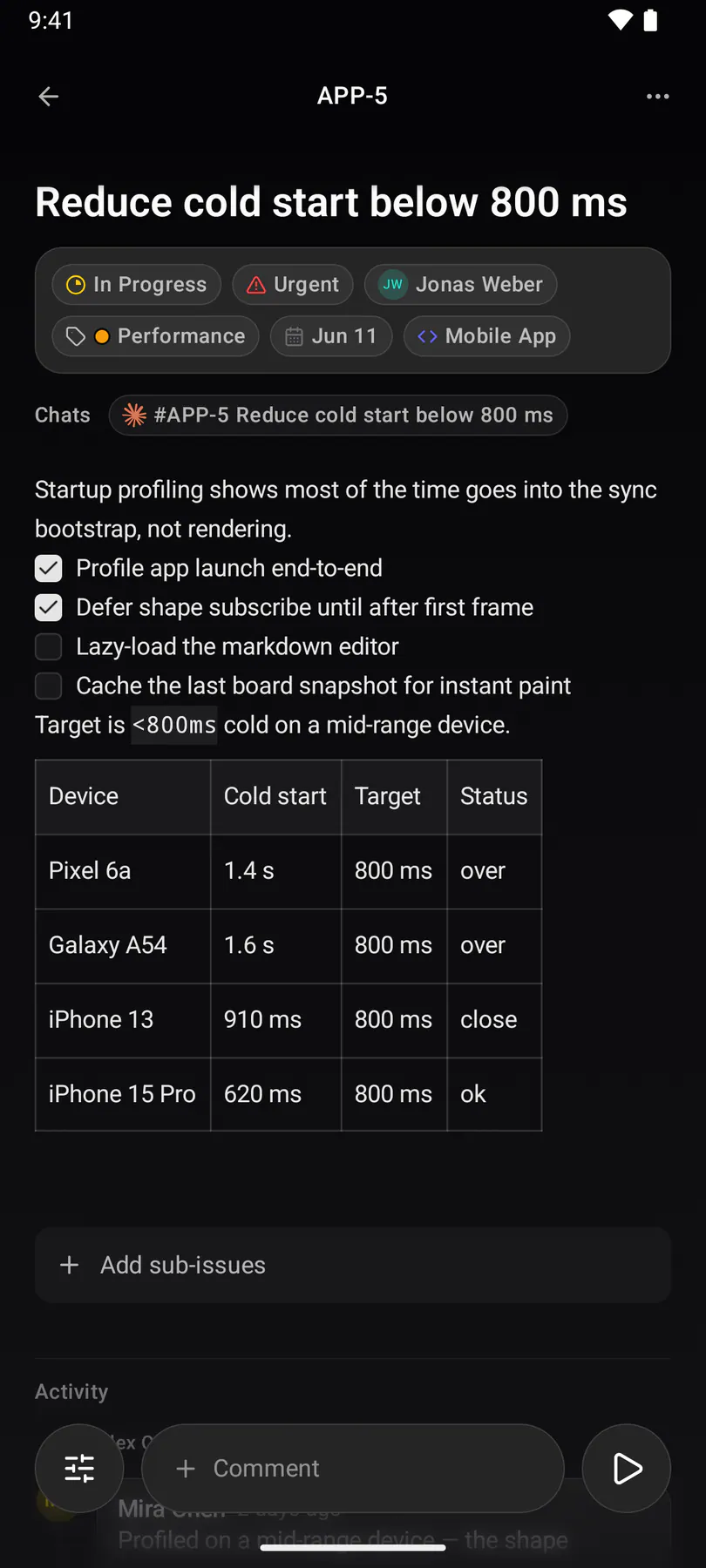
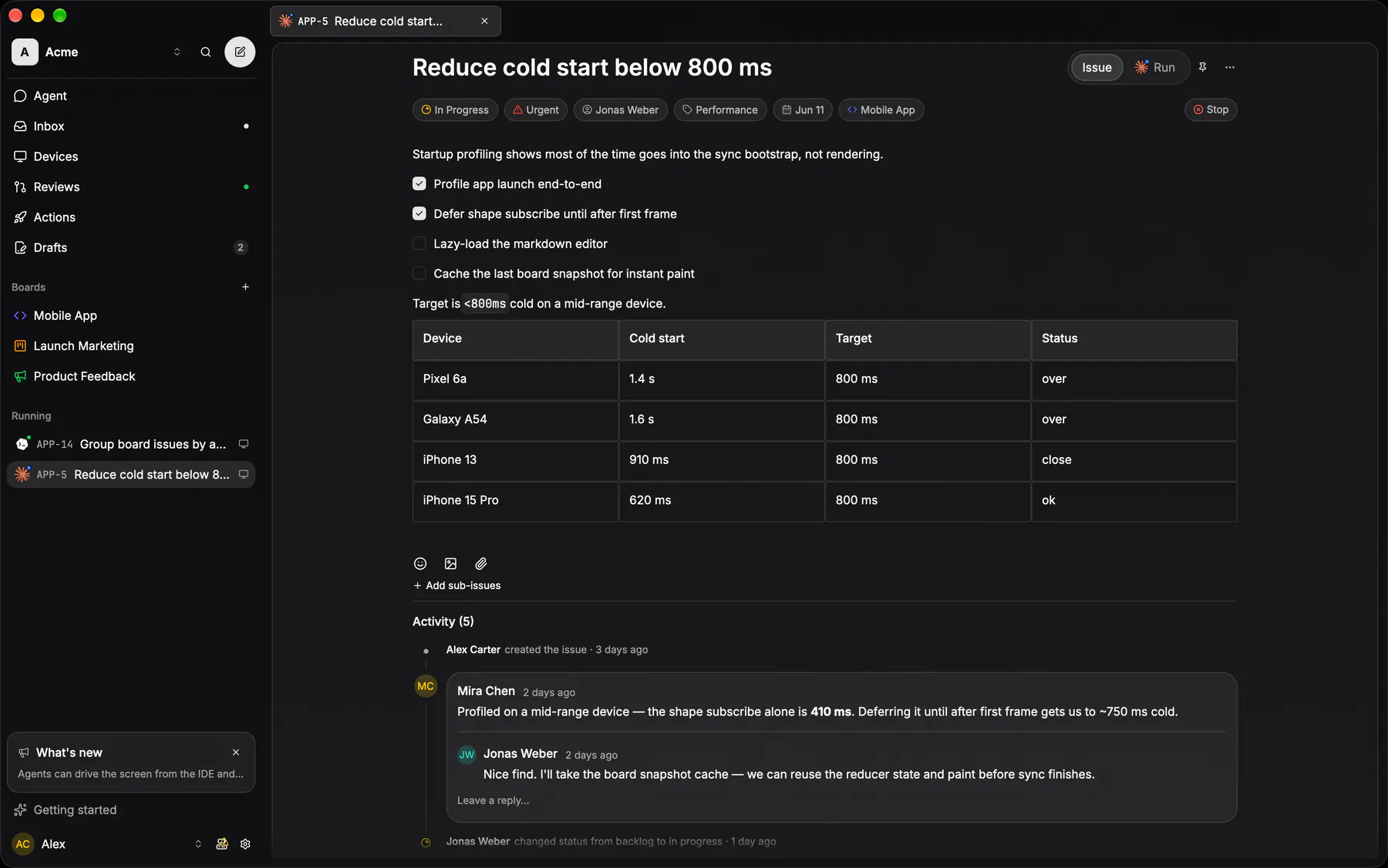
The title line carries Start, the pin and the … menu. A Chats row names every chat that worked the issue. Below come the property chips, the description, sub-issues and relations, and the activity.
Start opens the composer with the issue chipped. While GitHub, the board’s repository or an online device is missing, it opens the Ready to code? checklist instead.
Writing
Section titled “Writing”Descriptions and comments are GitHub-flavored markdown that renders the same on web, desktop, iOS and Android: bold, italic, strikethrough, code, headings, lists, task lists, quotes, tables and code blocks. Paste or drop an image to upload and embed it. Type : for emoji, @ to mention a teammate (they are notified and subscribed), # to link an issue. A known identifier like #EXP-42 becomes a pill with a hover preview and links the two issues as related.
Relations
Section titled “Relations”Add relation in the … menu offers Parent of, Sub-issue of, Blocking, Blocked by, Duplicate of and Related to. Every link shows on both issues. Add sub-issues files a new issue already parented to this one.
Activity and comments
Section titled “Activity and comments”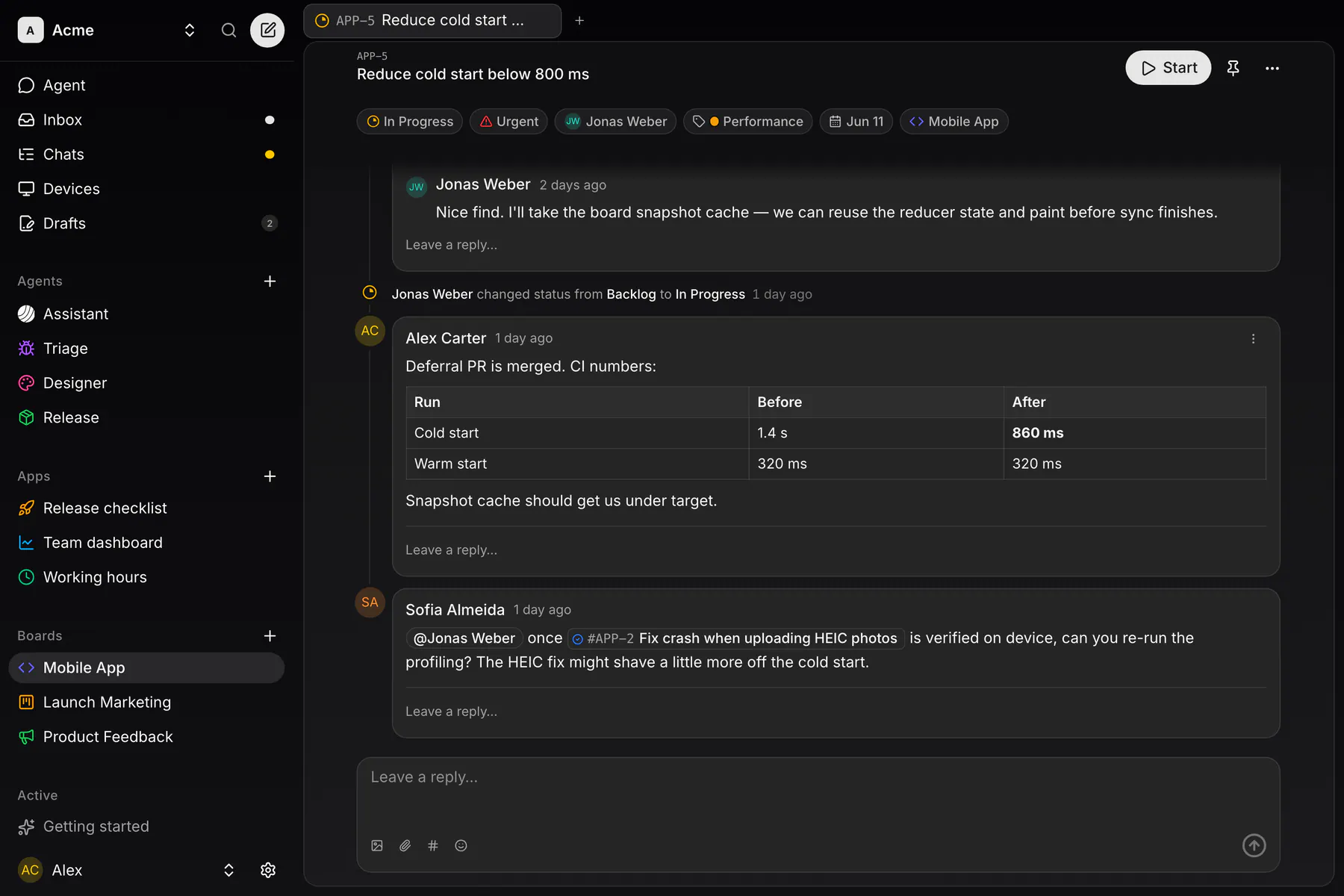
The timeline interleaves comments with events: status, labels, assignment, relations, PRs. Comments thread one level deep and take images and files. You follow an issue when you create it, comment, are assigned or are mentioned.
Notifications
Section titled “Notifications”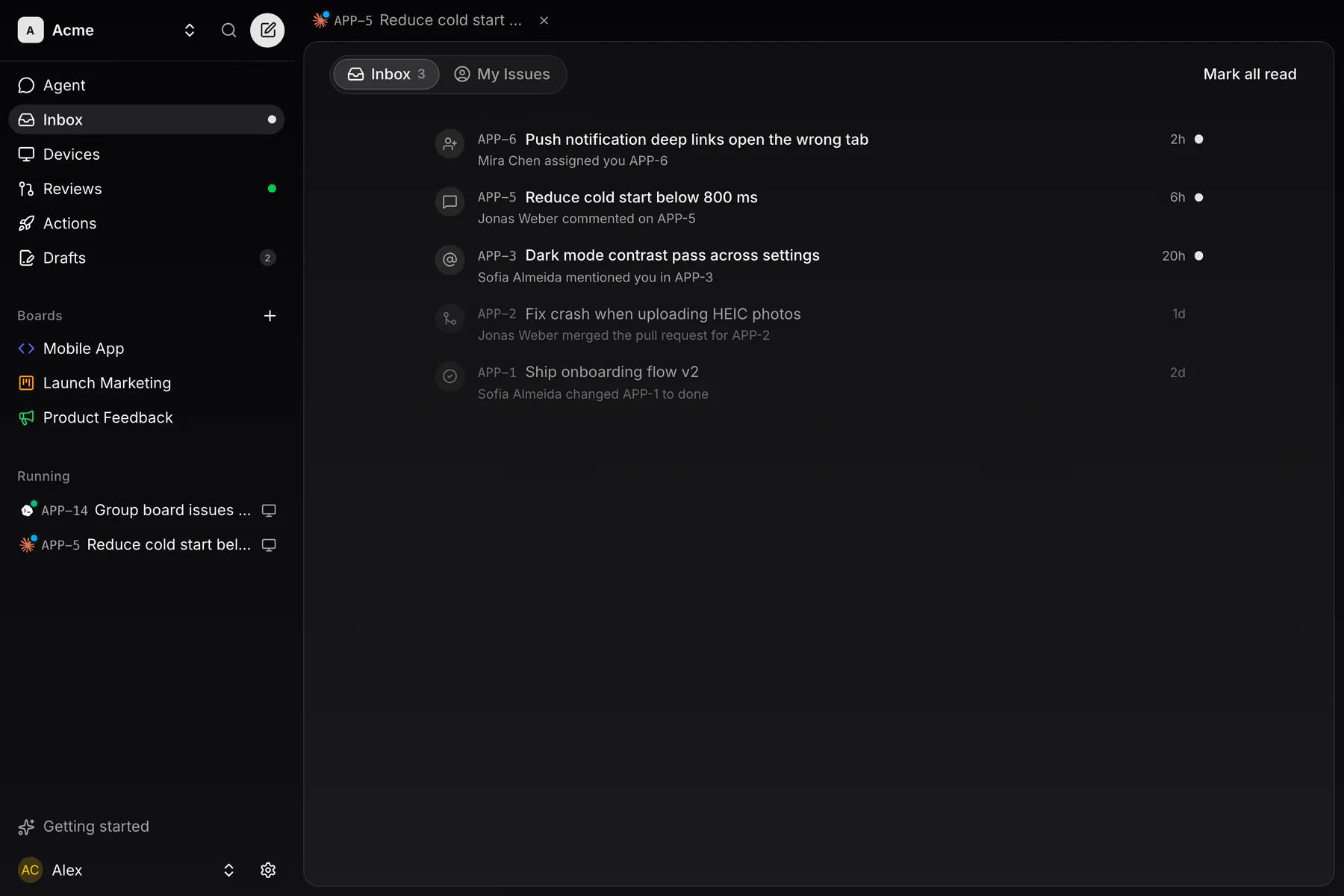
The inbox collects what is addressed to you: assignments, comments and status changes on issues you follow, mentions, PRs opened and merged, widget feedback and reporter replies, blocked sessions and messages from agents. Its My issues tab lists your assigned issues.
The same events arrive as push notifications on iOS and Android, and as system notifications in the desktop app. Email is one digest of what is still unread, daily at an hour you choose or hourly. Tune every type under Settings → Notifications.
Branches and pull requests
Section titled “Branches and pull requests”A chat coding one issue works on the branch exp/<IDENTIFIER>; a chat with several issues or none gets its own exp/session-… branch. Its pull request links every issue the chat holds.
Status moves on its own in three places:
- A coding session taking up an issue in Backlog or In Review moves it to In Progress.
- Opening a PR moves its issues to In Review; merging moves them to Done.
- A session dropping an issue puts it back to Backlog, unless a PR is open or another session still holds it.
People own Done, Cancelled and Duplicate. Change the PR targets, or set them to Do nothing, under Settings → Issues → PR automation.
A board picks its Repository and the Branch work starts from in the board’s settings. Without a pin, the team’s per-repository default applies, then GitHub’s default branch.
Archiving and deleting a board
Section titled “Archiving and deleting a board”Owners find both at the bottom of a board’s settings page. Archive board hides the board and its issues from the team until Unarchive under Settings → Archived boards. Move to trash deletes it after 48 hours; Restore works until then. The board’s prefix stays reserved either way.