

Install
Settings → Assistant → Voice
Section titled “Settings → Assistant → Voice”eTalk is part of the Exponential desktop app; there is nothing else to install. Open Settings → Assistant → Voice on the web, the desktop app or your phone. The settings are yours, per member.
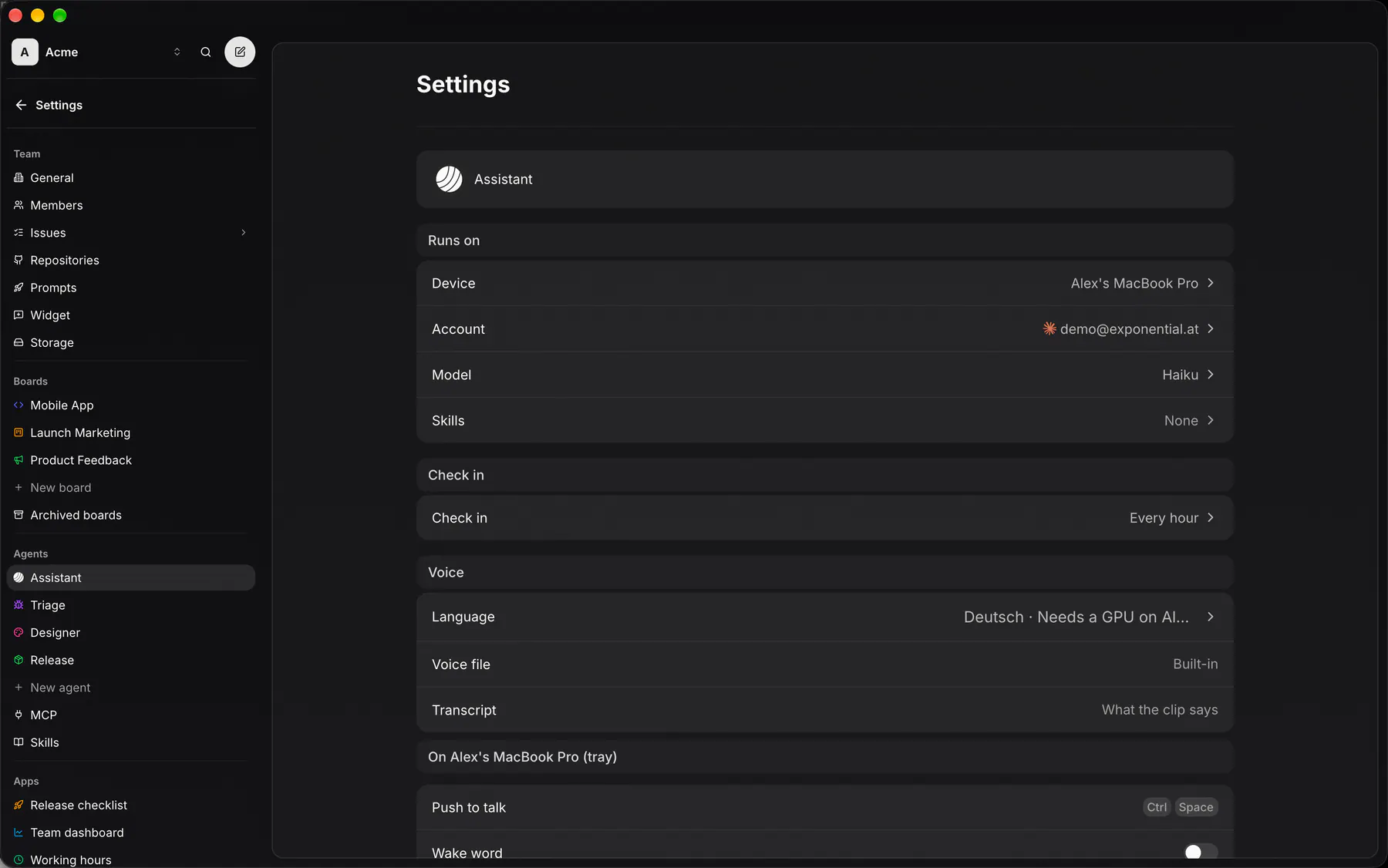
| Row | What it does |
|---|---|
| Voice device | The desktop that listens and speaks. Only your own desktops are listed. |
| Agent | The agent you talk to. Your words go into your chat with it. |
| Language | English or Deutsch. Replies are spoken, and speech is heard, in this language. |
| Voice file, Transcript | Shown once a voice device is picked. A clip of your voice and what it says. Empty = a built-in voice. See Your voice. |
Every switch stays off until both a voice device and an agent are picked.
The download
Section titled “The download”Replies to your voice are always spoken: once a voice device is picked it downloads the voice. The row shows the progress. Every file is pinned and checked against its sha256 before it is loaded. A failed download shows “Couldn’t download the voice” and is tried again on the next request, after a wait that starts at a minute and doubles up to an hour.
| Linux | macOS | Windows | |
|---|---|---|---|
| Speech out (first use) | ~2.97 GB | ~2.19 GB | ~2.28 GB |
| Speech in (first push to talk) | + 675 MB | + 675 MB | + 675 MB |
On macOS the runtime ships inside the app, so only the models download. The first push to talk answers “Downloading speech recognition…” while its models arrive.
| Needs | |
|---|---|
| Linux | x86_64. NVIDIA GPU with its driver (CUDA). |
| macOS | Apple silicon (Metal). |
| Windows | x86_64. A Vulkan driver. |
Speech out needs a GPU with at least 4 GB that passes a speed test on one sentence. Without one, replies are shown and stay silent. A GPU that fails the test is tried again after 30 days or a driver change.
Speech in also runs on the CPU, slower and without words while you speak. On Windows the CPU path needs the Visual C++ runtime.
Microphone
Section titled “Microphone”The microphone opens only while you hold the shortcut. Linux reads it through PipeWire or PulseAudio. Windows uses the default input device.
Push to talk
Section titled “Push to talk”Desktop only. With a voice device picked, a second group appears: On {device} (tray). Click Push to talk in the desktop app of the voice device and press any key or combination, like a game keybind (Esc cancels, Backspace clears it). No key bound = push to talk off. Other clients show the binding, read-only.
Hold the shortcut, speak, let go. Not every desktop lets an app grab every key: Push-to-talk shortcuts lists what works where.
The tray
Section titled “The tray”On the voice device the desktop app adds a tray icon. Its menu, top to bottom:
| Item | Does |
|---|---|
| Open Exponential | Brings a window up, a new one when none is open. |
| Push to talk · Ctrl + Space | Shown while a key is bound; opens Settings → Assistant → Voice. Reads {shortcut} unavailable when the desktop won’t let the app grab it. |
| Wake word · Hey Triage | The switch, with the wake phrase. |
| Mute microphone | Shown while push to talk listens on this desktop. Keeps the microphone closed. |
| Voice settings… | Opens Settings → Assistant → Voice. |
| Quit | Quits the app. |
Wake word is off and disabled until both a voice device and an agent are picked. While the tray is there, closing the last window keeps the app running, so the voice stays loaded; macOS always keeps it running.
On GNOME the tray needs the AppIndicator extension. Without it there is no tray, and closing the last window quits.