Desktop
The desktop app is a native Rust IDE, the client that runs coding sessions and the git IDE around them. Grab it from the download page:
- macOS: a notarized
.dmg. - Windows: a portable
.exe, no installer. - Linux: an
AppImagefor x86_64, glibc 2.39 or newer (Ubuntu 24.04 and later).
All three come from GitHub Releases, with checksums published alongside. On first launch, sign in to the cloud or point it at your self-hosted instance URL.
Self-updating
The app checks the latest release at launch and every four hours while running. An update shows a banner. Click it and the download streams, verifies against the published checksums, and swaps in place; hit Restart to update when it's ready. No package manager, no manual downloads.
The layout
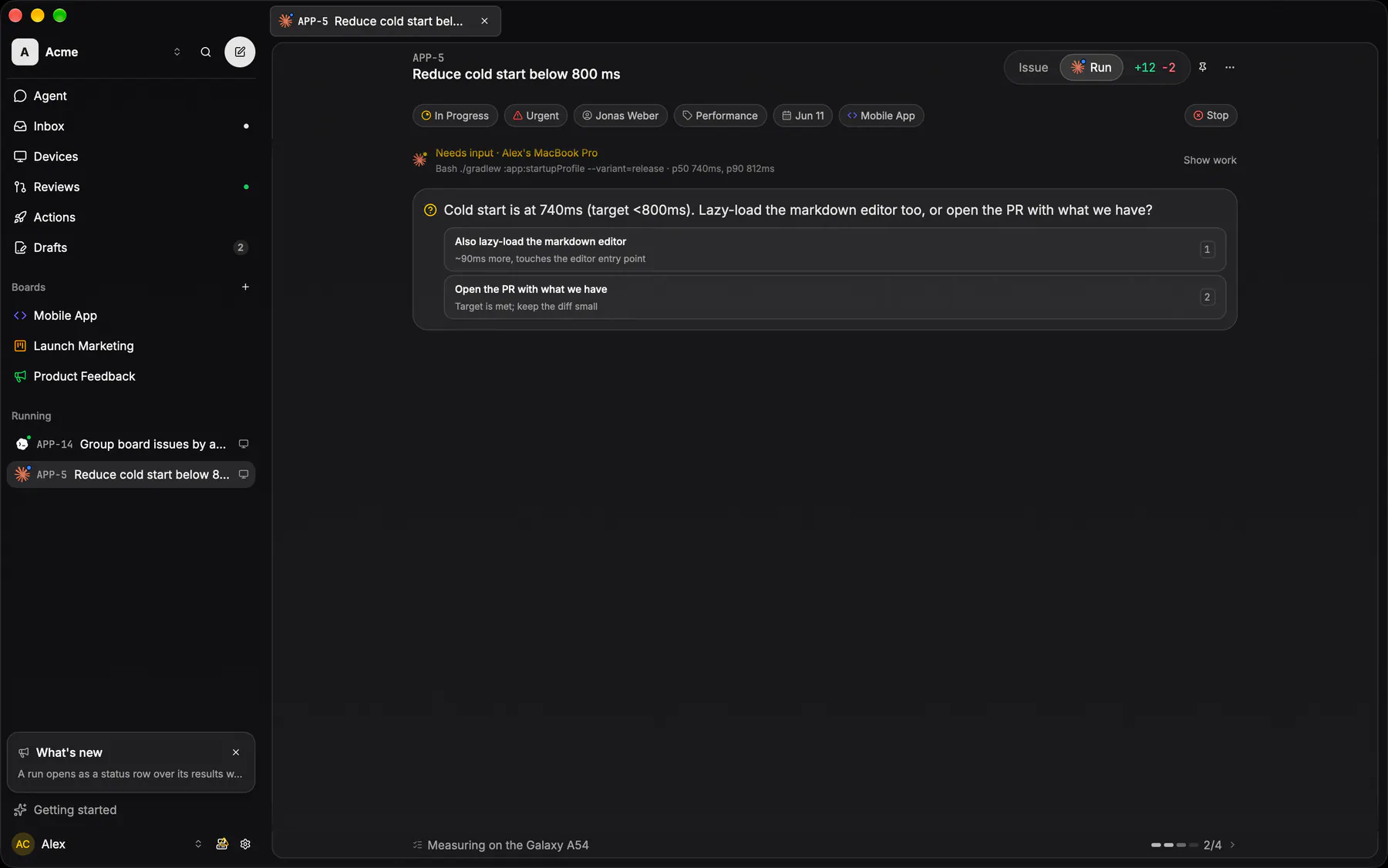
The sidebar mirrors the web app: the team switcher, Search and New issue at the top, then Inbox, Devices, Actions, Reviews and Agent, your Pinned issues and actions, the boards, and under This device the machine's own Files and Source Control. At the bottom sit the What's new card, Getting started and your account, whose menu holds What's new, About and Sign out, with a new-terminal button and the settings gear on its right.
The sidebar never leaves. Open an issue or a run from a list, or open Settings, and it folds into a narrow icon rail with that list beside it, so every entry stays one click away.
The working area is a rounded card on a darker ground, the same cutout layout the web app uses. Work opens as tabs along its top. An issue and its coding run share one tab, with an Issue | Run switch in the header. Every live run of yours gets a tab too, grouped by agent, and can't be closed while it runs. Terminals fill the card instead, and open terminals get a bar of tabs under it — a bar that is not there at all while none is open.
System notifications
The desktop app raises real macOS, Windows and XDG notifications when something lands in your inbox, coalescing a burst into one toast and staying quiet while the window is already focused. It is per machine: Settings → Notifications → Desktop notifications, with the per-type switches below it applying to those too.
Mobile
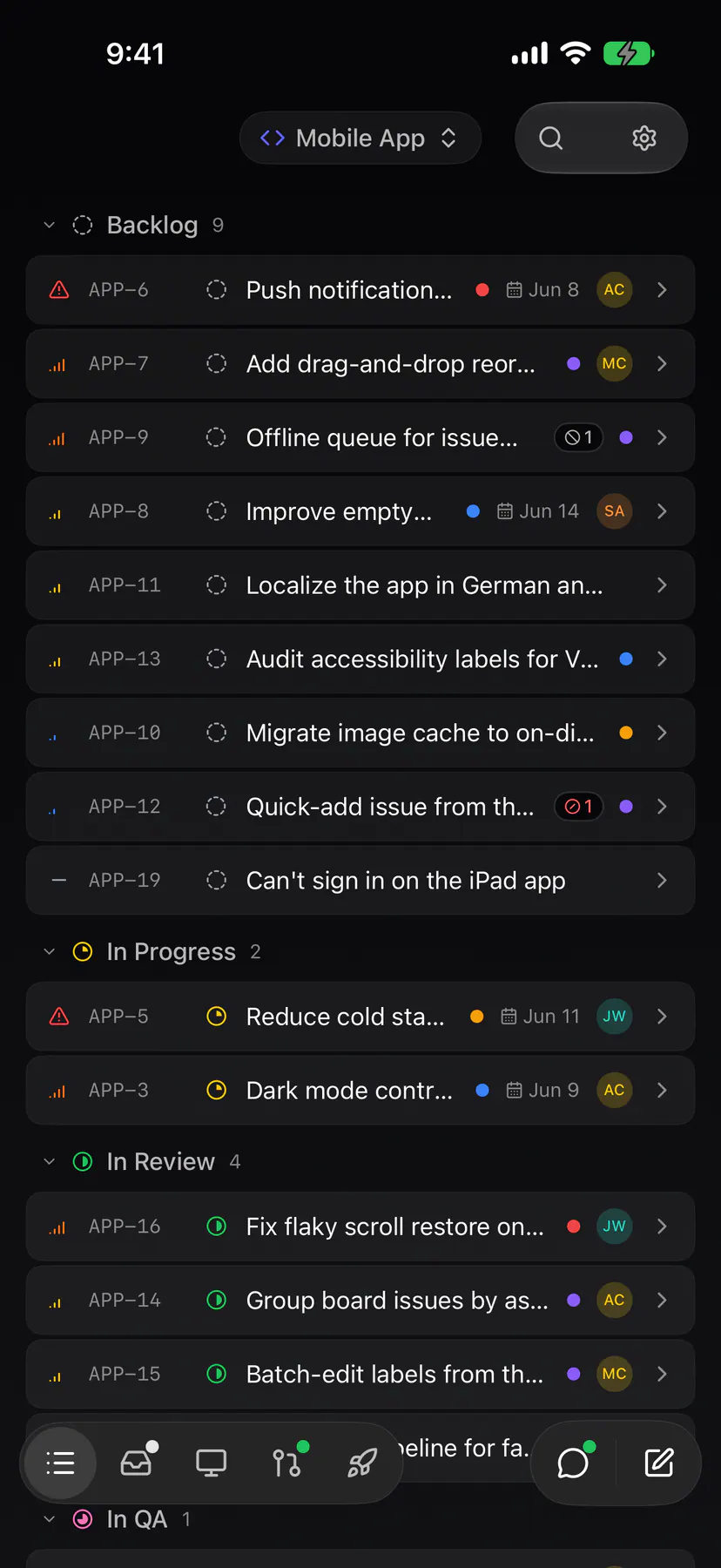
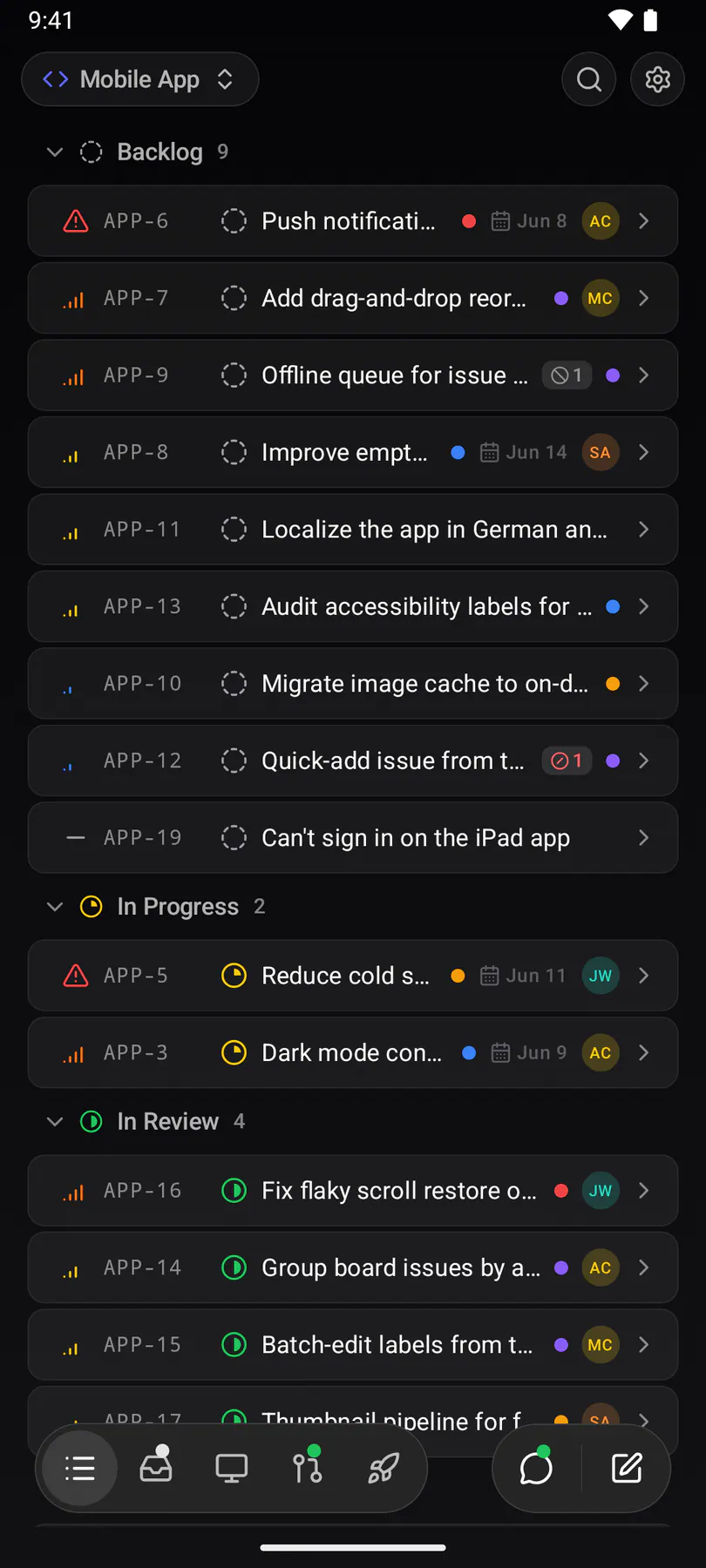
Native iOS and Android apps with everything synced in real time. Five tabs:
- Issues: your boards. Triage, edit, comment.
- My Work: your inbox and the issues assigned to you, in one place.
- Devices: your machines, the team's shared ones, and the agent accounts they hold.
- Actions: the team's actions and the suggestions to start from.
- Reviews: every issue with an open PR, with a one-click merge.
The round chat button beside the tab pill opens the Agent page: its composer, and your running and past runs. On a board, New issue sits beside it. Search sits in the board header. Select issues and the bulk bar takes the tab bar's place, with status, priority, assignee, labels and delete on it. Full onboarding runs on mobile too: create boards, connect GitHub, and manage repos without ever opening a laptop.
Push notifications
Everything that lands in your inbox (assignments, comments, mentions, PR opened / merged) arrives as a push notification the moment it happens. Tapping one deep-links straight to the issue. Notification preferences from Settings → Notifications apply to push too.
Steer from anywhere
A coding session started on your desktop doesn't chain you to the desk. The Agent page, on the phone and on the web, lists every run of yours with a live activity feed one tap away. Watch the agent work in real time, and send steer messages mid-run: answer its question, veto an approach, add a constraint you forgot.
You can also start one from here: the composer's issue and action chips, its device and agent pickers, and the steer composer — / slash commands, and @ for a teammate, # for an issue and : for an emoji — are the same on the phone as on the desktop. On the phone, Stop sits in a run's top bar, and its … menu holds Usage (how much of the agent's limits this run and this week have spent). The phone's work screen is one screen with four faces, Issue, Run, Changes and Results, swapped held as screen state under one bottom bar. The bar is three slots: a context slot on the left (the usage ring on Run, the file list on Changes), a capsule in the middle (the composer on Run, Merge PR on Changes) and the face switcher circle on the right. So an open PR the run opened, on an issue or from an action or chat, merges from the Changes face, with Fix conflicts taking the capsule if the merge hits conflicts. Results appears once the run has published screenshots.
The full flow (starting runs, plan mode, batches, review) is in Coding agents.